Text to Video AI Generator (Free, Online)
Convert text prompts into short videos with AI. MakeShort lets you generate 5–15 second clips using models like Seedance, Kling, and Veo 3. Control style, camera motion, and format (16:9, 9:16, 1:1), then download ready-to-use MP4 videos for TikTok, YouTube, or ads.
Multi-Model Text to Video
All-in-One Text to Video AI (Multiple Models, One Workflow)
Create videos from text with the model that matches your style—photoreal, anime, product shots, or cinematic. MakeShort brings top AI video models into one text to video generator so you can compare results, refine prompts faster, and export ready-to-post MP4 in high quality.
Seedance 2.0 AI Video Generator (Coming Soon)
Seedance 2.0 is designed for stronger structure and scene consistency with references (text, images, clips, and audio). It’s on our roadmap for the MakeShort AI text-to-video generator. Until then, you can create high-quality videos today with our available models, including Seedance 1.5 Pro.
Roadmap model
Seedance AI Video Generator (ByteDance)
Generate AI videos with Seedance in MakeShort AI. Seedance is ByteDance’s text-to-video model known for multi-shot generation and smooth camera motion. Use it when you want dynamic cuts, clear direction, and fast iterations from a single text prompt.
Multi-shot + camera motion
Kling 3.0 AI Video Model (Text-to-Video)
Create cinematic, multi-shot clips from a single prompt with Kling 3.0 inside MakeShort AI. Kling 3.0 is built for text-to-video storytelling, with smoother motion across shots, better scene continuity, and improved on-screen text rendering. Use storyboard-style controls to shape pacing and camera direction, then export a clean 15-second MP4 for social or ads.
Multi-shot + storyboard controls
Visualize Your Ideas Instantly with MakeShort AI’s Text-to-Video Generator
Turn your imagination into stunning visuals with MakeShort AI’s text-to-video technology. Simply enter a text prompt, and watch your ideas transform into engaging, high-quality videos in seconds. Whether you're creating marketing content, storytelling clips, or social media visuals, MakeShort AI makes video creation effortless and intuitive.
A Text to Video AI for Creators, Marketers, and Teams
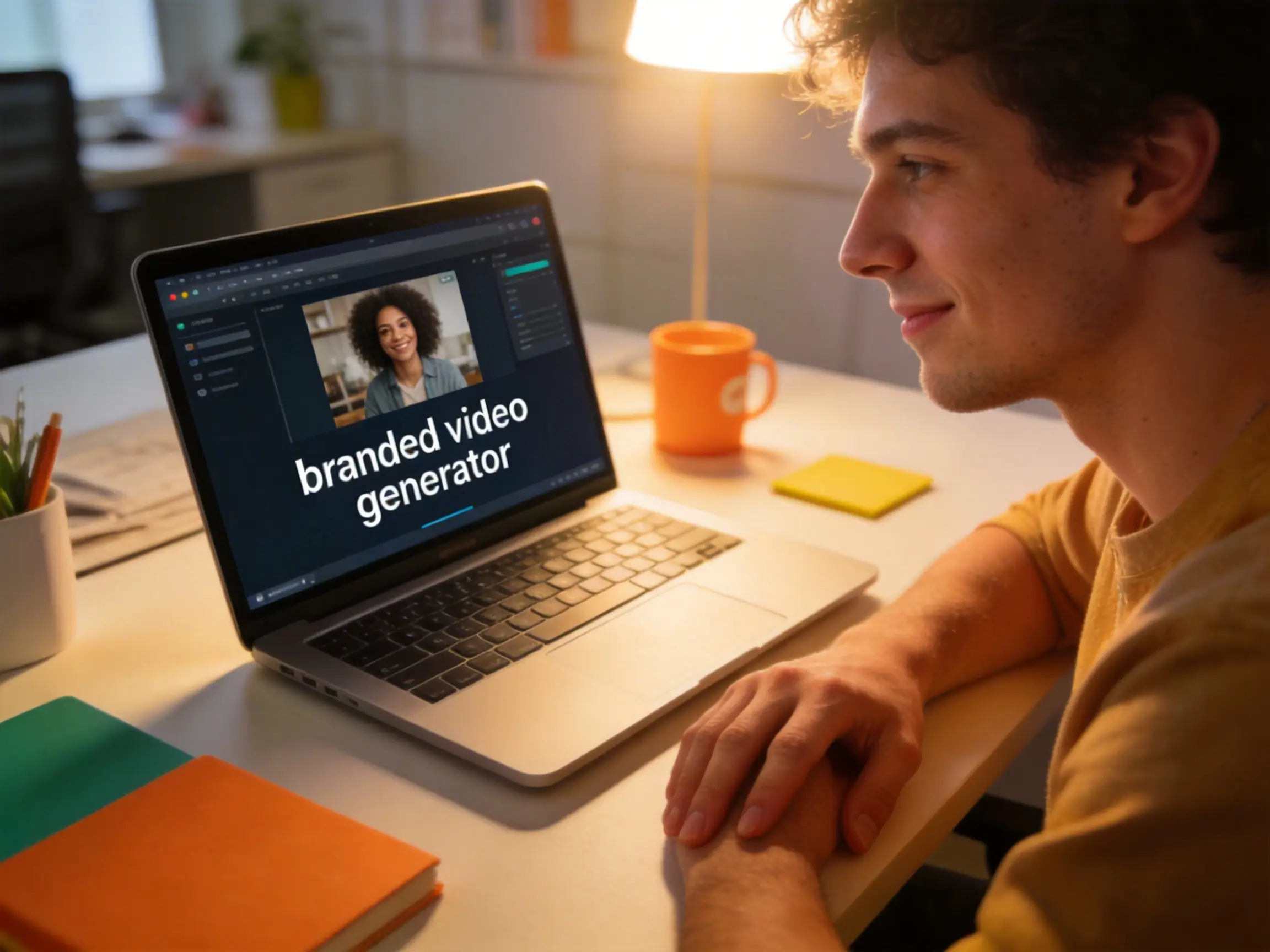
Turn product angles, benefits, and offers into polished videos from a text prompt. Keep messaging consistent across variants while spending less time on production.
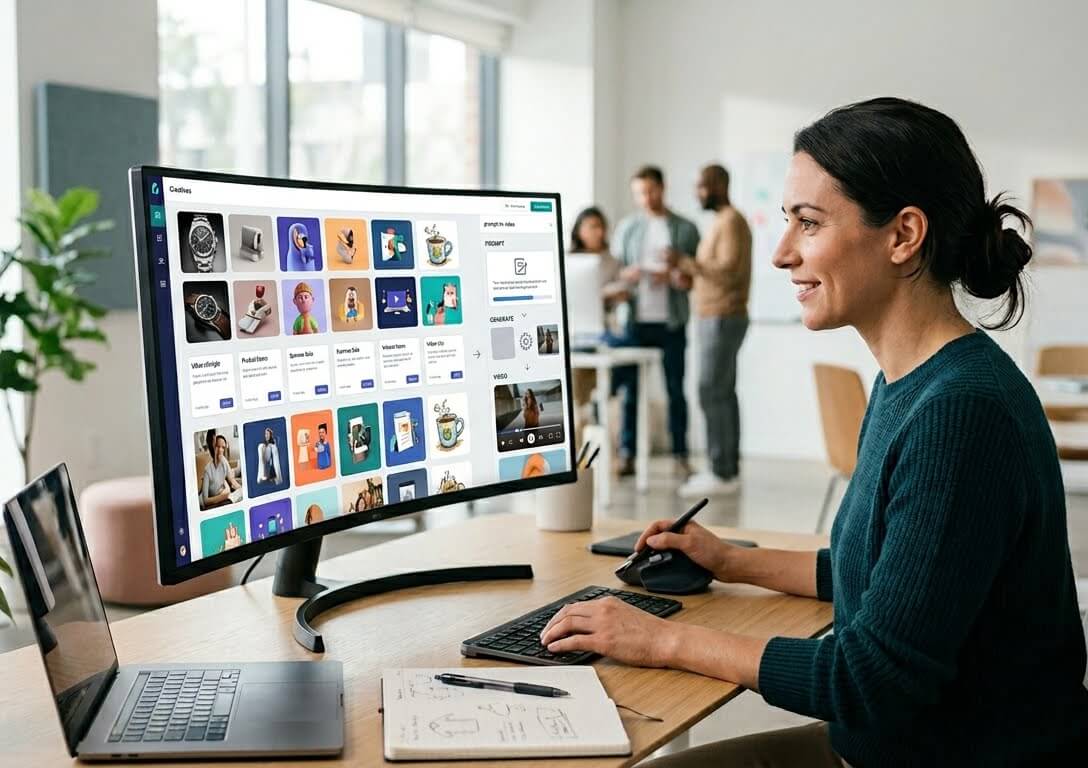
Generate multiple ad concepts and styles quickly, test what works, then iterate with better prompts. MakeShort keeps your text-to-video workflow simple—even at volume.
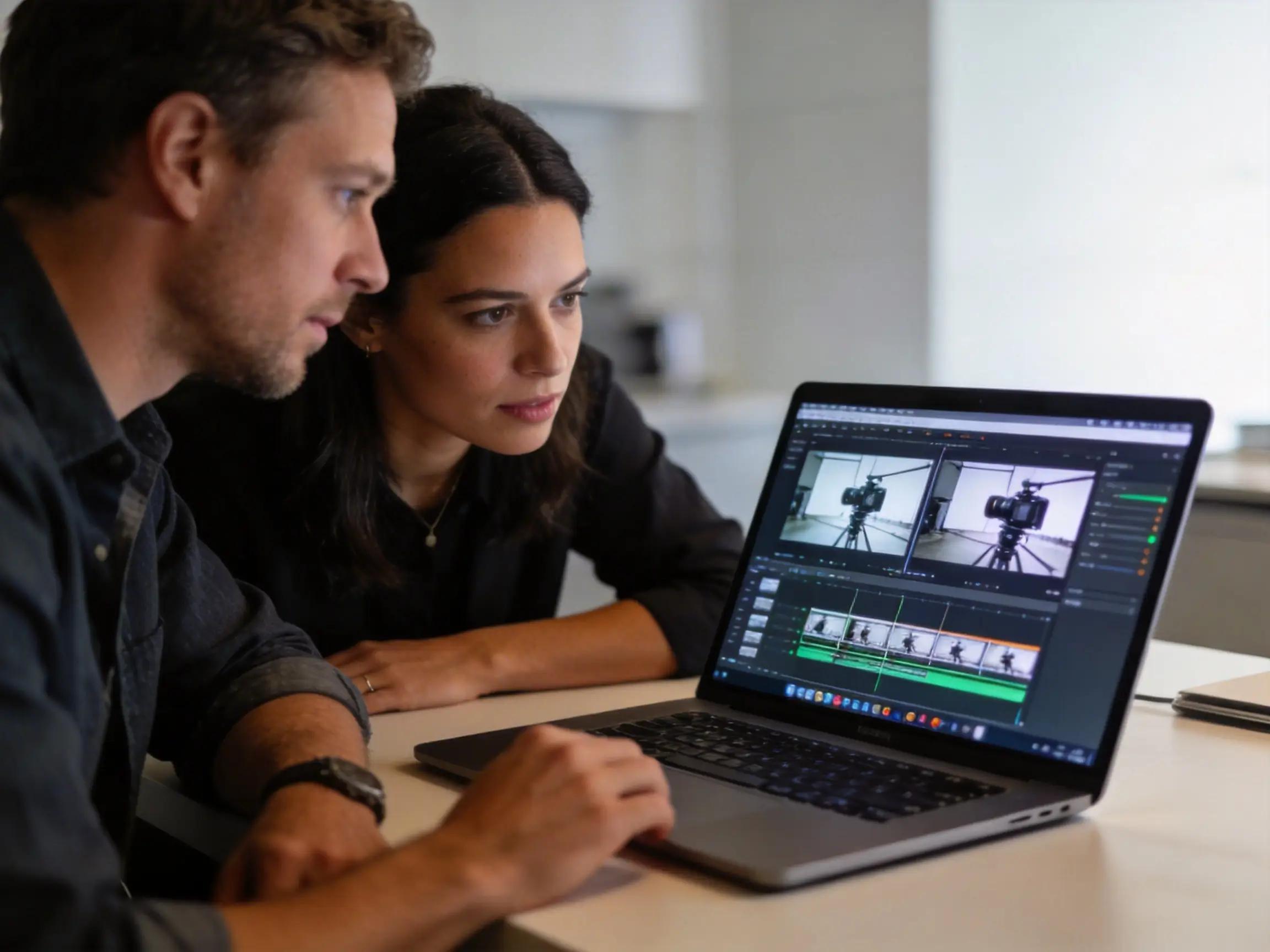
Storyboard, explore camera movement, and experiment with mood and lighting before you shoot. Use AI text to video generation to validate ideas and save rework.
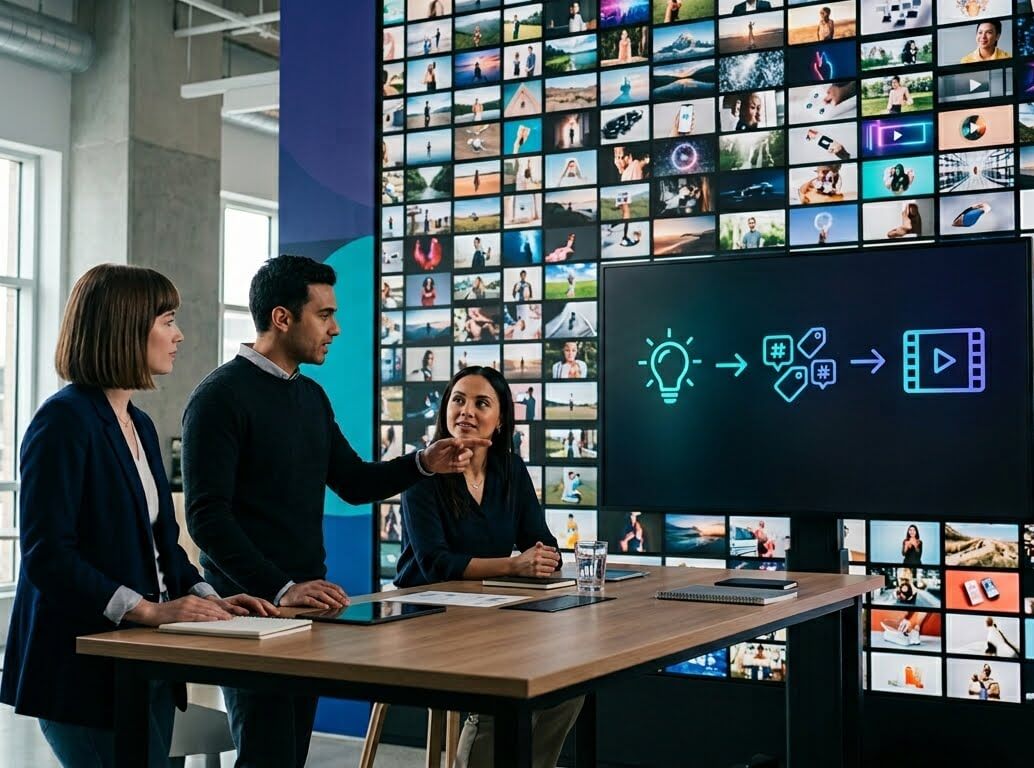
Turn hooks, scripts, and story ideas into short-form videos you can publish quickly. Spend less time editing and more time creating content your audience wants.
How to Use Text to Video AI
How to Convert Text to Video with AI (3-Step Guide)
Learn how to turn text into video using AI. This guide covers how to create short videos for TikTok, YouTube, ads, and storytelling using text prompts and AI video models.
Step 1: Write a Clear and Detailed Text Prompt
Describe your scene with as much detail as possible, including subject, action, setting, and style. For better results, include camera movement (pan, zoom), lighting (studio, sunset), and mood (cinematic, realistic). A well-written prompt directly improves video quality.
Step 2: Choose a Model and Video Settings
Select an AI video model based on your goal, such as cinematic storytelling, product videos, or social media clips. Adjust settings like duration, resolution, and aspect ratio (16:9 for YouTube, 9:16 for TikTok and Shorts).
Step 3: Generate, Download, and Optimize
Generate your video and download the MP4 file. If needed, refine your prompt and regenerate for better results. Before publishing, make sure your video format, length, and style match your target platform.
Text to Video AI FAQ
What is text to video AI?
Text to video AI is a technology that converts written prompts into video clips. Users describe a scene in text, and the AI generates visuals, motion, and style automatically without manual editing.
How do you convert text to video?
To convert text into video, write a detailed prompt describing your scene, choose an AI video model, and generate the clip. You can adjust style, duration, and format before downloading the final video.
What is the best text to video AI generator?
The best text to video AI depends on your needs. Some tools focus on cinematic quality, while others are optimized for speed or social media content. Platforms like MakeShort allow you to compare multiple models in one place.
What types of videos can AI generate from text?
AI text to video tools can create social media videos, product demos, cinematic scenes, animations, and marketing content. The output depends on the prompt and selected model.
Are there free text to video AI tools?
Many text to video AI tools offer free credits for new users. These allow you to test video generation before upgrading to a paid plan for higher limits or better quality outputs.
Why are some AI-generated videos better than others?
Video quality depends on the AI model, prompt detail, and settings such as duration and resolution. Better prompts and more advanced models usually produce more realistic and consistent results.
Can I use AI-generated videos for commercial use?
Yes, AI-generated videos can be used for ads, marketing, and business content. However, usage rights depend on the platform and model, so always check the licensing terms before publishing.